header

header

Thursday, 4 June 2015

Robocraft - Day 4


Michelle helped me figure out how to use the Tech Tree, which you can access by pressing tab and clicking on it, or just by pressing T. You can unlock cubes by gaining tech points from doing battles. When you buy them they will be available in your Cube Depot, where you can buy as many as you want, to add to your robot.


This is the cube depot, where you can buy cubes to build with. Here I was buying more Light Chassis Cubes because I ran out of them and I decided to make a new robot. This cube and a few other items are free in the shop.


 I started to build another robot and I accidentally hit something and a red line appeared. It made me place blocks symmetrically. To use this I figured out the key to activate it is X.


I found my new robot had a little better control, and after unlocking new cubes I had better protection from enemies. I went into classic battle mode a few times and sometimes our team won.


My advice would be to use the symmetrical tool because it helped me build my robot in about half the time it would have taken me because I don't need to keep checking the other side every time I place a block. I found it really helpful and used it to build my robot the entire time after I discovered it.


Wednesday, 3 June 2015

Robocraft - Day 3


I deleted the second robot in the garage and made my own. I didn't have a design I just made it. I tried to make it lighter by using only the light cubes and a few windshield pieces to cover the driver.


I tested my new robot out in practice mode. I don't think the steering is much better than the other robots in the garage. I discovered that if you only use the first wheels in the inventory, your robot will not turn at all, so I used both of them and even tried out using only the steering ones.

My advice would be to make the difference between the front and the back of the robot noticeable because mine looks similar and I keep forgetting which way is the front and I end up turning around in circles a lot and driving backwards.

Robocraft - Day 2


Today I learned how to get different blocks by either pressing tab and clicking Inventory or Q to get to the inventory. Here you can get blocks, wheels, guns, and more. You can place them on the robot by left clicking, or remove them by right clicking.

My advice: You can access other robots that are already made by going to your garage from pressing tab, or press G. There are three including the one that's already in your garage. To select it, just click on the slot and then click on the Load Robot button at the top right corner to use it. Under that button is where you can sell the robot to make money and have a free slot to save another robot you make. You can also buy a fourth slot if you have enough money.

Monday, 1 June 2015

Robocraft - Day 1

I downloaded Robocraft and launched it.

 I got an error but I verified my email and launched Robocraft again and I got in.


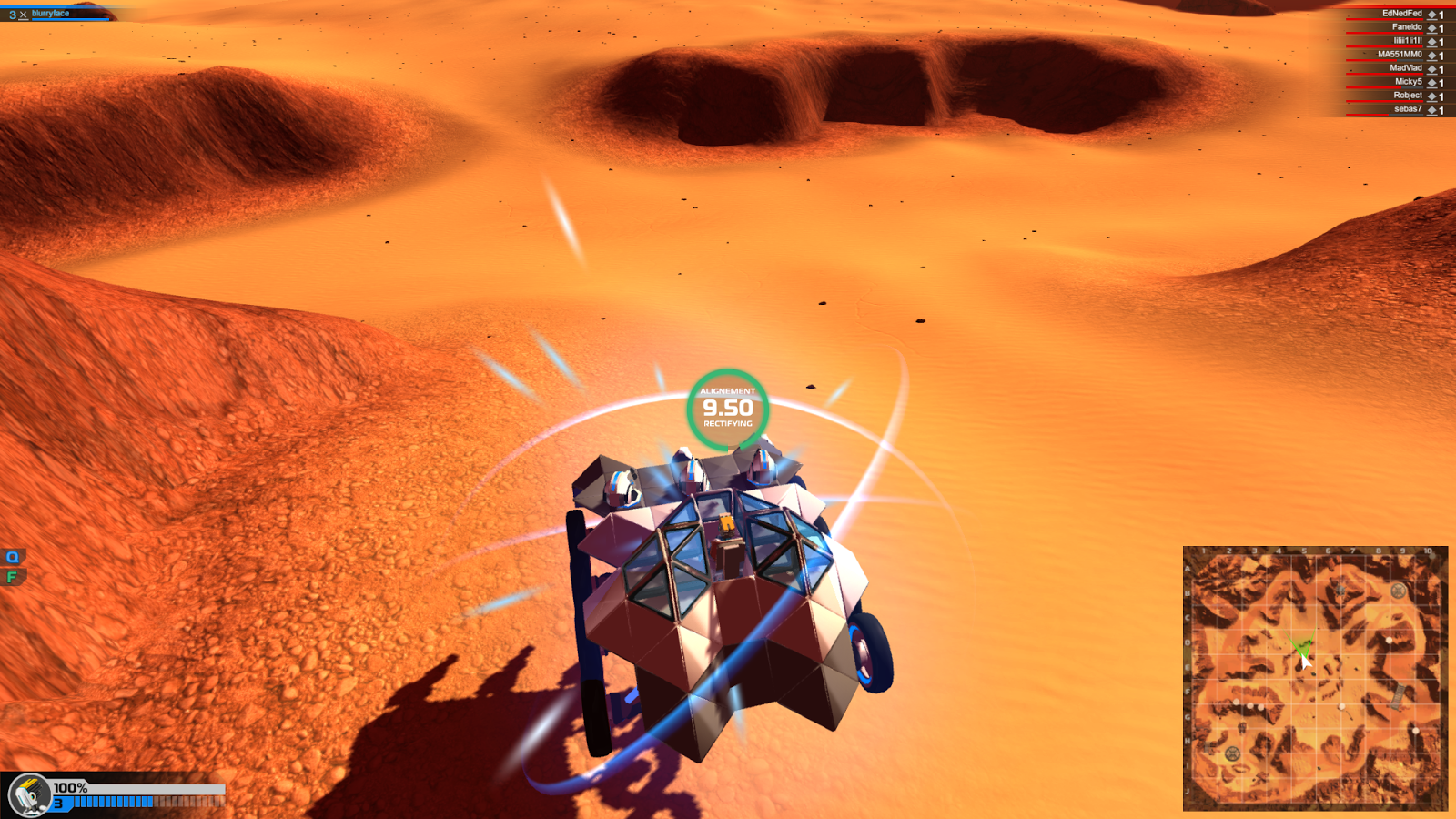
I went into practice mode to get used to playing. I got flipped or stuck between rocks a few times but I learned how to flip back by pressing F.


My advice is to stay away from rocks and mountains because you will get flipped if you try to drive over them.